Free delivery across India · Handcrafted marble home décor · GST invoice with every order

WordPress plugin
Addonify Quick View Pro
Addonify Quick View Pro adds a button to WooCommerce product loops. Selecting it opens a popup modal with an AJAX-loaded product summary, so shoppers can inspect an entry before opening its full product detail page. Choose whether the modal shows the product image or gallery, title, price, excerpt, add to cart button, and product detail link.
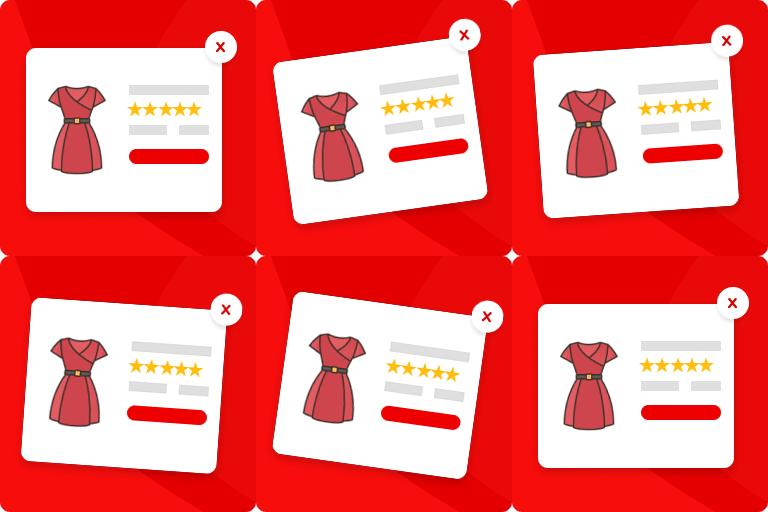
Preview products from a WooCommerce loop
Addonify Quick View Pro adds a button to WooCommerce product loops. Selecting it opens a popup modal with an AJAX-loaded product summary, so shoppers can inspect an entry before opening its full product detail page. Choose whether the modal shows the product image or gallery, title, price, excerpt, add to cart button, and product detail link.
Product discovery and modal behavior
Pro adds related products and navigation between products in the modal. You can enable social sharing, track viewed products with analytics, and let shoppers add products to the cart using AJAX.
- Set the quick view label and button icon, choose a spinner, and control the modal content row direction.
- Configure opening and closing animations, and disable quick view on mobile devices.
- Let visitors close the modal with the Escape key or an outside click, and choose whether to display the close button.
Style the preview for your storefront
Button controls include text, background, border, and border radius. For the modal, adjust the box and overlay colors, border, radius, text color, and CSS z-index.
Further options cover spinner color and size; WooCommerce gallery borders, icons, and thumbnails; product image borders; and the thumbnail gap and number shown in each row. Product title, price, rating stars, and other modal buttons have color controls. Title and price also have font size settings, and the title has a font weight setting.
Shortcode and developer options
Use a shortcode to show a quick view button for a selected product:
[addonify_quick_view_button id="1" label="Quick View" classes="btn" icon="icon_one" icon_position="left"]
Set the product ID, button label, CSS classes, icon, and icon position with the shortcode attributes. The icon can be set to icon_one through icon_six; its position can be left or right.
Developers can also add custom quick view buttons, use hooks and filters, overwrite extension templates, or work with the JavaScript API. Custom CSS can be added from the admin settings page.
Configure the quick view
In the extension settings, choose the content and behavior for the modal and adjust its appearance for your product loops. Use the shortcode when a button is needed for a specific product.